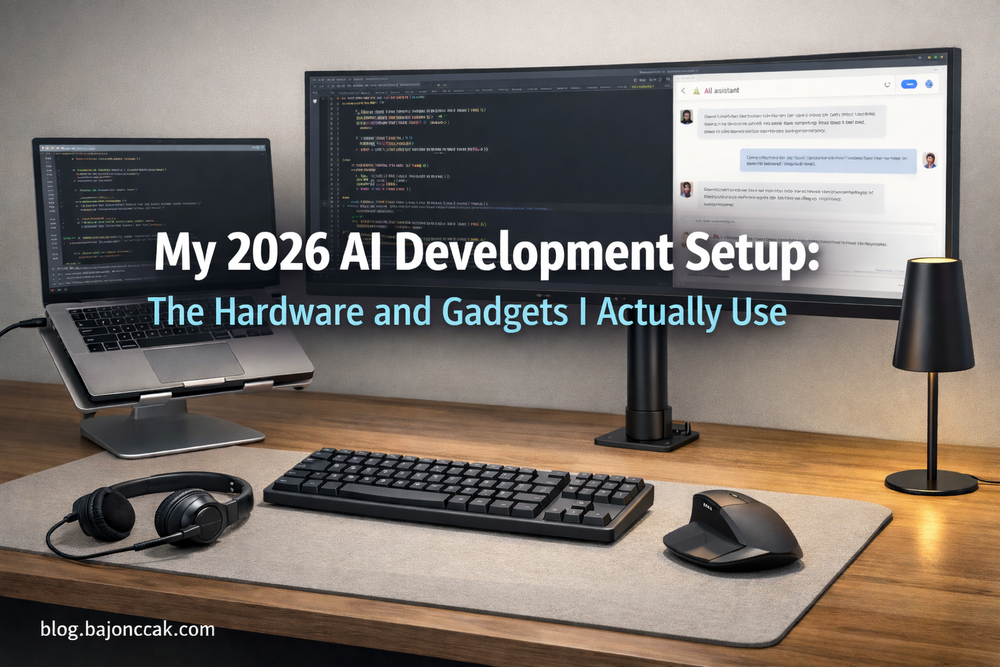
My 2026 AI Development Setup: Hardware and Gadgets I Actually Use Every Day
AI tools are fun to talk about, but they sit on top of something much more boring – your hardware setup.
If your machine is struggling, your screen is cramped, your mouse hurts your wrist and your audio is bad, no amount of clever AI will fix that. So instead of writing another abstract “AI tools” post, I want to show you the setup I actually use every day in 2026 for AI-enhanced development.
This article contains Amazon affiliate links. If you buy through them, I earn a small commission at no extra cost to you. I only recommend things I either use myself or would recommend to a friend.
1. The main machine: an AI-friendly laptop with headroom
My primary machine right now is a powerful XMG laptop. The exact model is less important than the characteristics:
- enough CPU cores to handle builds, containers and local models at the same time
- plenty of RAM so I don’t start swapping every time I open another project or model
- fast NVMe storage for code, containers and AI weights
As a rule of thumb, I’d consider this the baseline if you want to work comfortably with AI tools and some local models:
- 32 GB RAM (64 GB if you can afford it)
- at least 1 TB NVMe SSD
- a recent multi-core CPU (modern Intel i7/i9 or AMD Ryzen 7/9)
If you’re looking for something similar, check this type of configuration:
AI-capable developer laptop (32 GB RAM, fast SSD)
A solid workhorse for coding, containers and local AI experiments.
https://amzn.to/46aeo0K
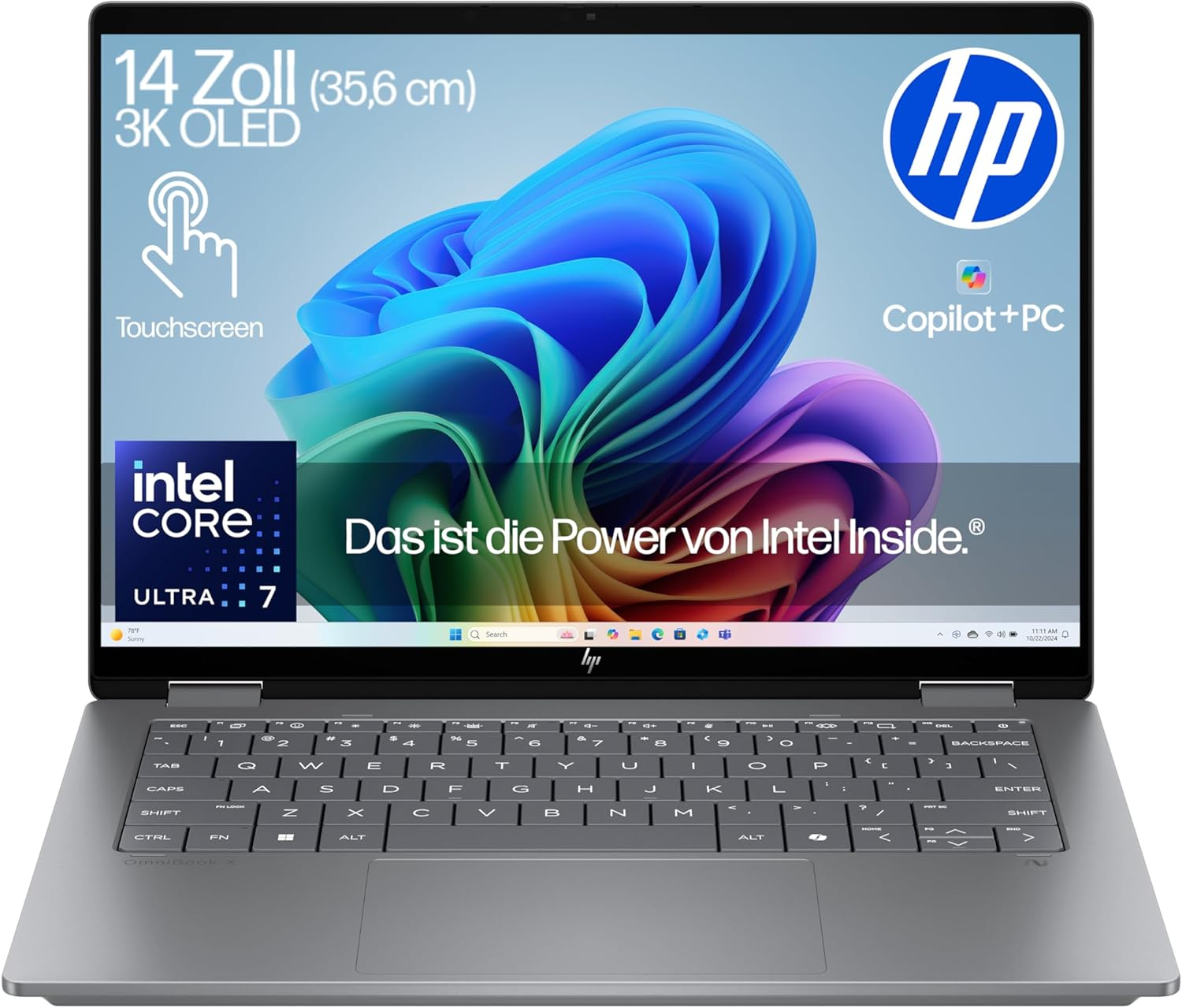
For me, the idea is simple: I want a machine that doesn’t force me to close apps or avoid local models just to keep the system responsive.
2. The widescreen monitor: room for code, browser and AI
The thing I notice most about my setup when I sit at someone else’s desk is the screen.
I use a widescreen monitor, which gives me enough horizontal space to:
- keep my IDE on one side,
- put browser and docs in the middle,
- and keep an AI assistant window or logs visible on the other side.
That alone dramatically reduces context switching. Instead of constantly alt-tabbing between code, docs and AI, I can see everything I care about at once.
If you want something in the same spirit:
34" (approx.) ultrawide monitor
Great for having IDE, browser and AI side-by-side on a single panel.
https://amzn.to/4aoP3Th
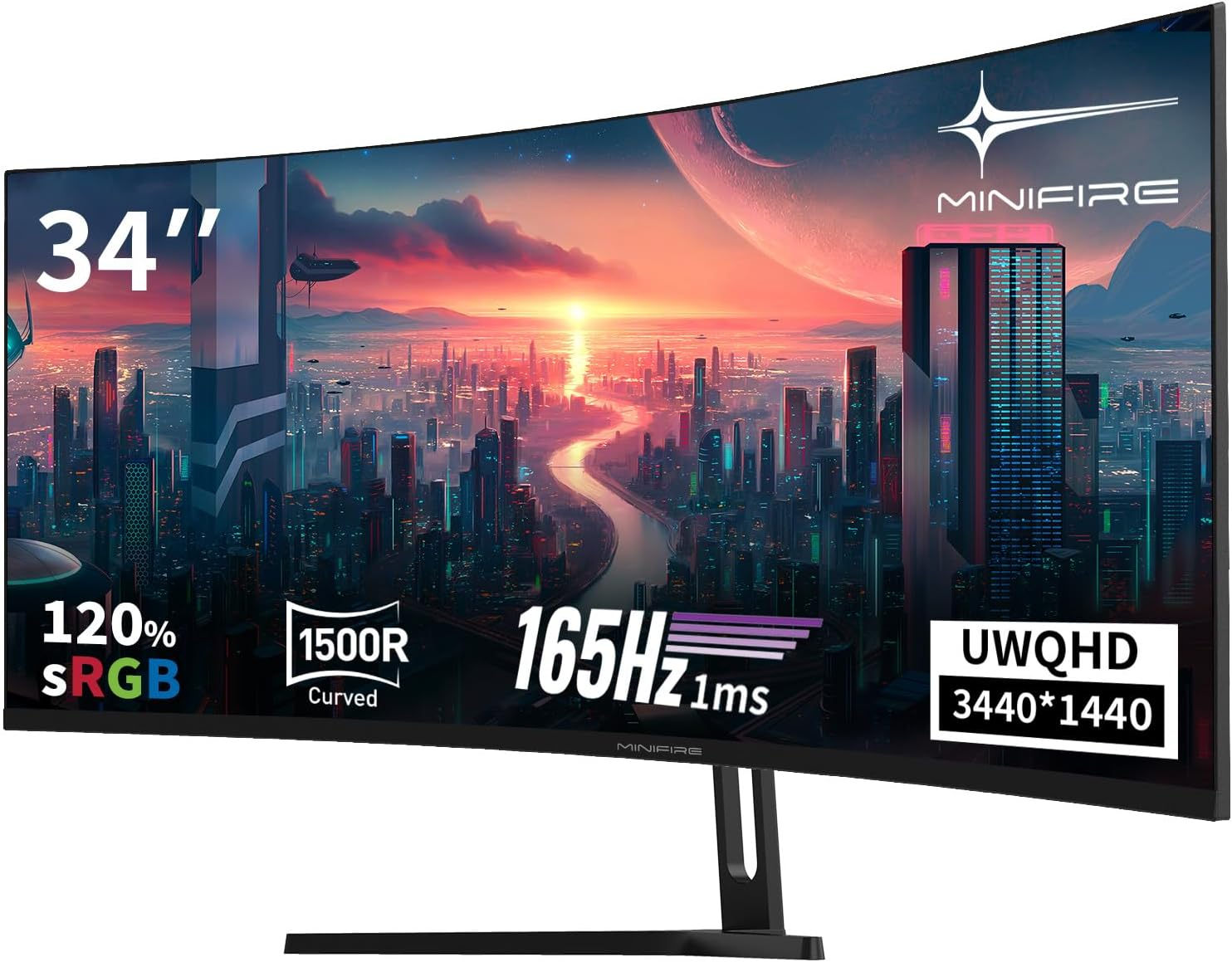
I don’t think everyone needs an ultrawide, but having one good, big screen is one of the best upgrades you can make if you work with AI tools all day.
3. Mouse and keyboard: MX Master Combo
For input, I’ve settled on something that’s pretty common among developers, but still worth calling out: the Logitech MX Master mouse and the matching keyboard.
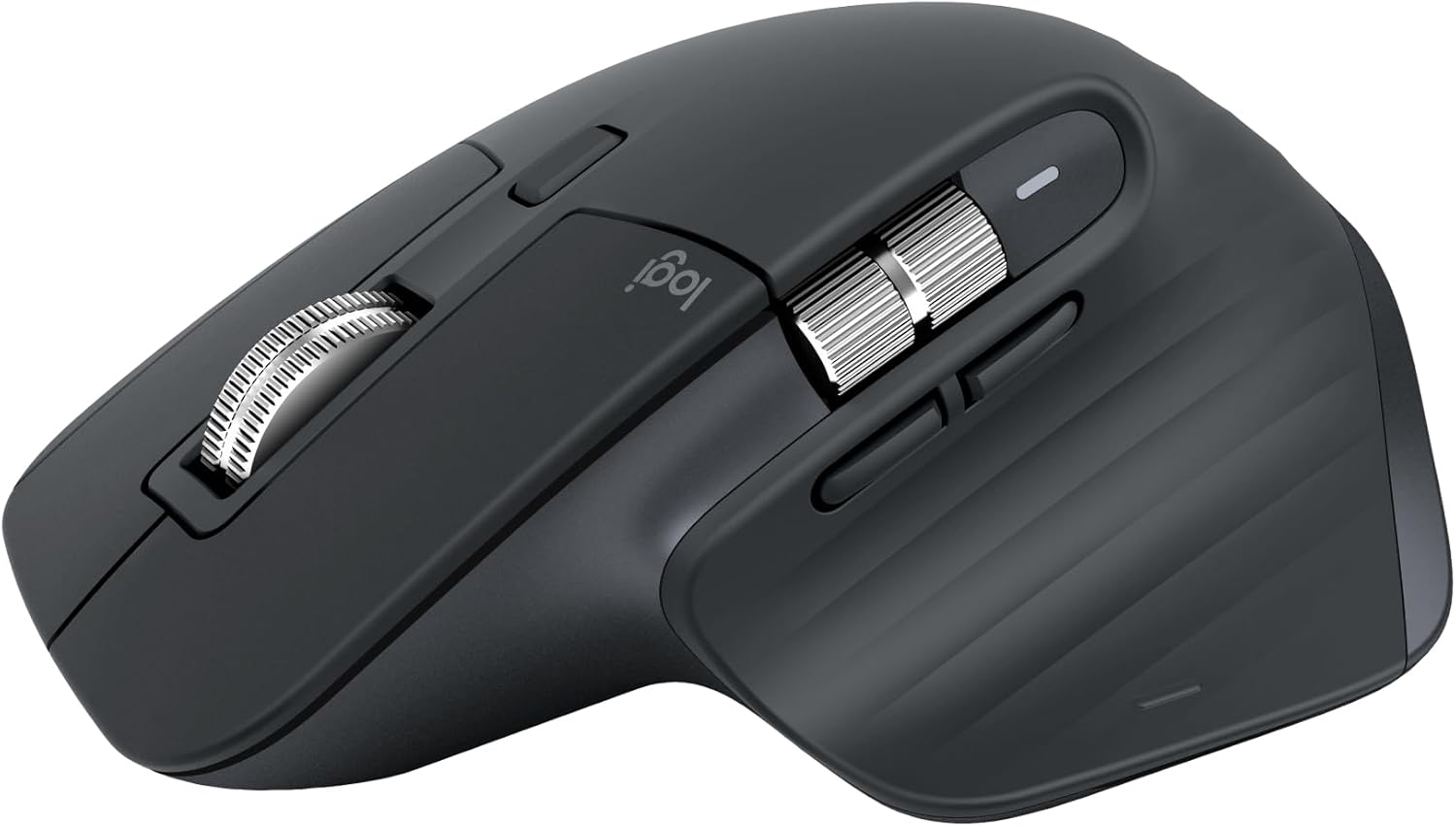
Logitech MX Master mouse
The MX Master line is popular for a reason:
- comfortable ergonomic shape for long days
- smooth scroll wheel (especially nice when you’re scrolling through logs or long code files)
- extra buttons you can map to your most-used shortcuts
I use it as my daily driver – for coding, browsing, AI prompts, everything.
Logitech MX Master mouse
Ergonomic, precise and great for long coding sessions.
https://amzn.to/4s2SJQB
Matching Logitech MX keyboard
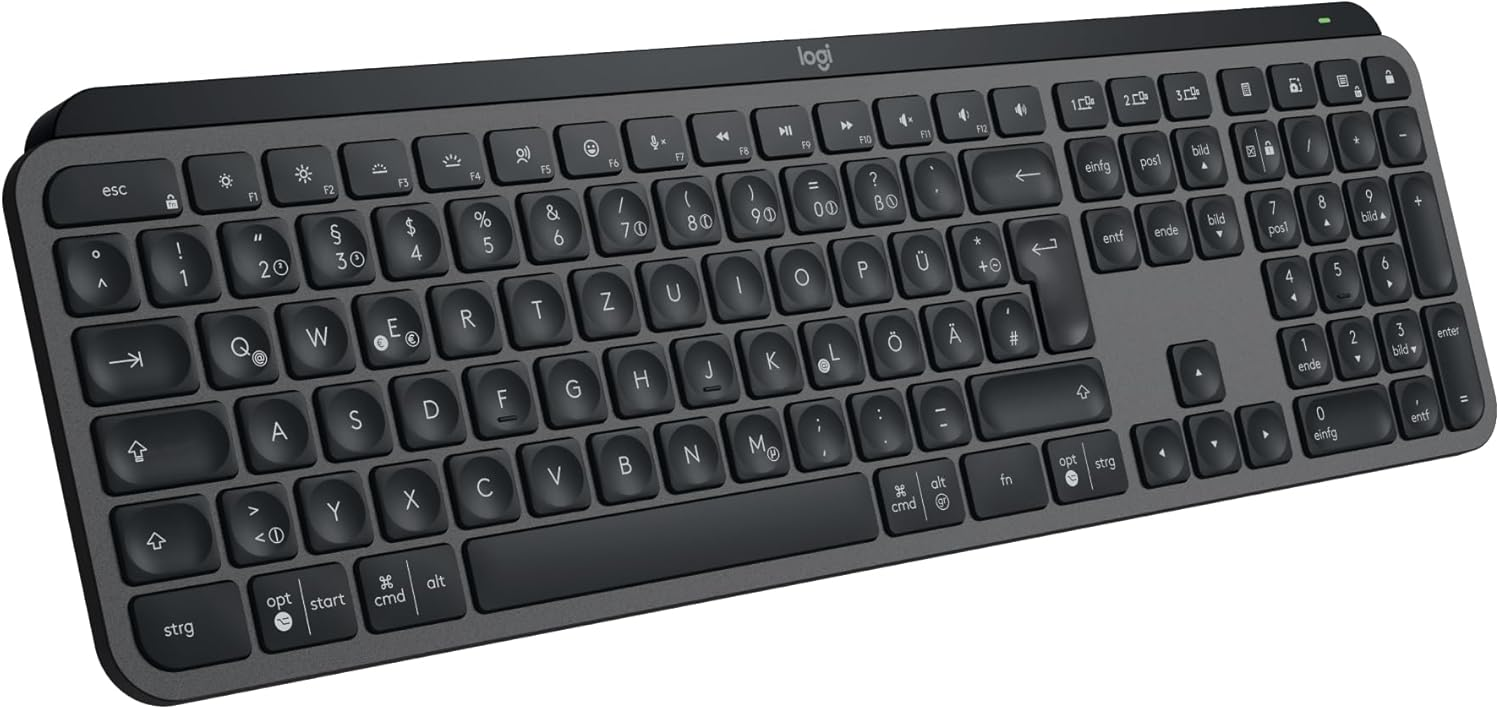
To go with it, I use the Logitech MX keyboard. The reasons are similar:
- solid typing feel
- good layout for developers
- backlighting that helps in low light
Logitech MX mechanical/office keyboard
Comfortable keyboard with backlight, pairs nicely with the MX Master mouse.
https://amzn.to/3MLg6iq
It’s not the flashiest “mechanical keyboard setup on earth”, but it’s something I can type on for hours without thinking about it – and that’s exactly what I want.
4. Headset: a wired Poly headset (because batteries always die)
For calls, pair programming and quick ad-hoc meetings, I use a wired Poly headset.
I know wireless is trendy, but I have one simple reason for going wired: I don’t want to think about batteries. When I join a call, I want the headset to just work.
The wired Poly headset gives me:
- reliable audio without worrying about charging
- a boom mic that keeps my voice clear
- plug-and-play simplicity
Wired Poly office headset
No batteries, good voice quality, reliable for daily calls.
https://amzn.to/4rrXO51
If you’re like me and you constantly forget to charge devices, a wired headset is the less glamorous but more reliable option.
5. Desk lamp with USB: small light, big quality-of-life upgrade
I often work in the evening or at night, and having a bright ceiling lamp on the whole time is not exactly cozy.
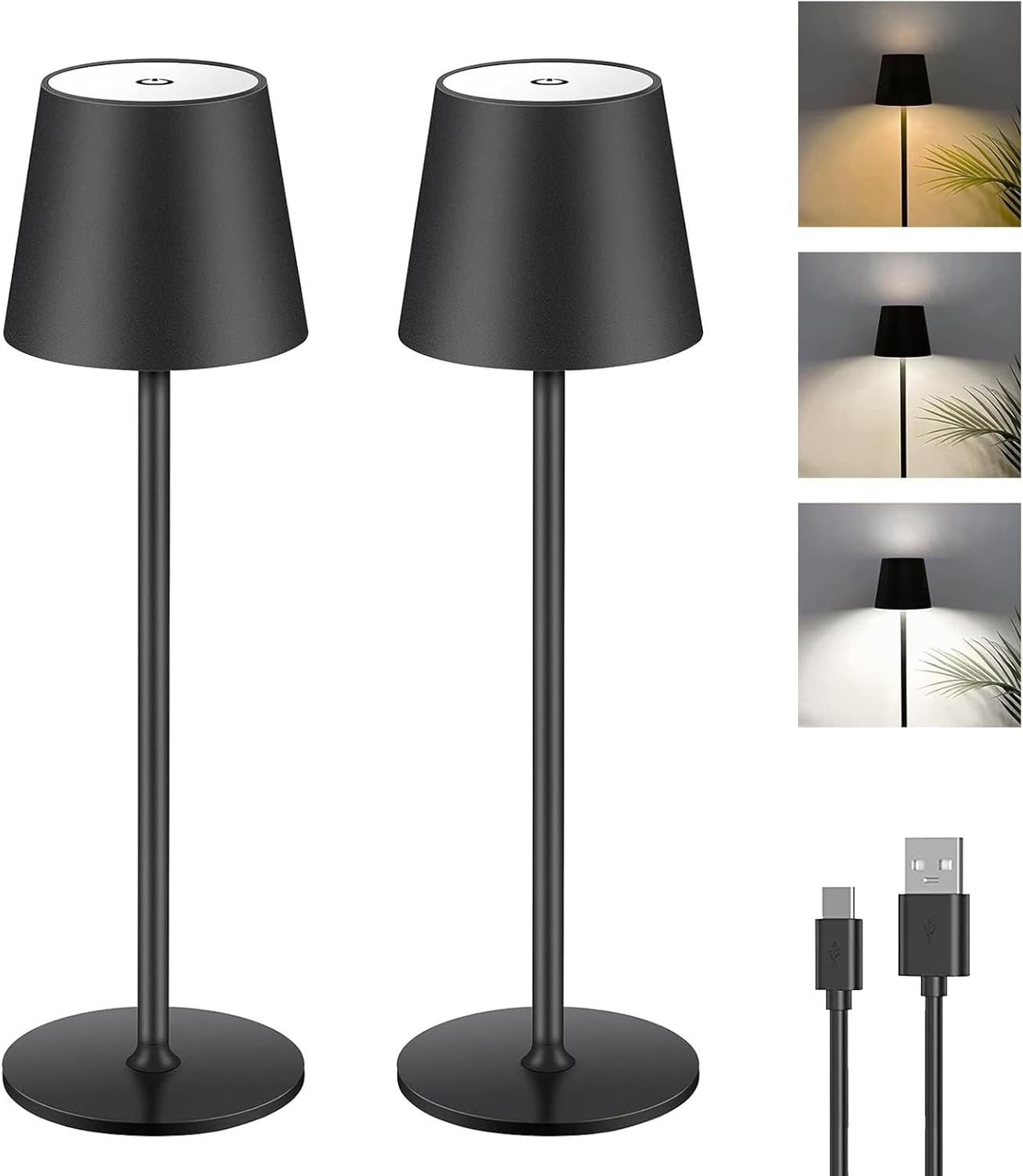
So I added a desk lamp with USB power to my setup. It sounds trivial, but it helps with:
- reducing eye strain in the evening
- lighting up the keyboard area when the room is otherwise dim
- keeping the workspace usable without turning the room into daylight
Because it’s USB-powered, I can plug it directly into my dock or laptop.
USB-powered desk lamp
Adjustable light for evening sessions, makes it easier to work in a dim room.
https://amzn.to/4rnykpf
It’s one of those „cheap but high impact“ items that you forget about until you don’t have it.
6. Laptop stand and monitor arm: a clean, ergonomic setup
To keep the setup physically comfortable and visually clean, I use two more pieces:
- a laptop stand,
- and a monitor arm.
Laptop stand
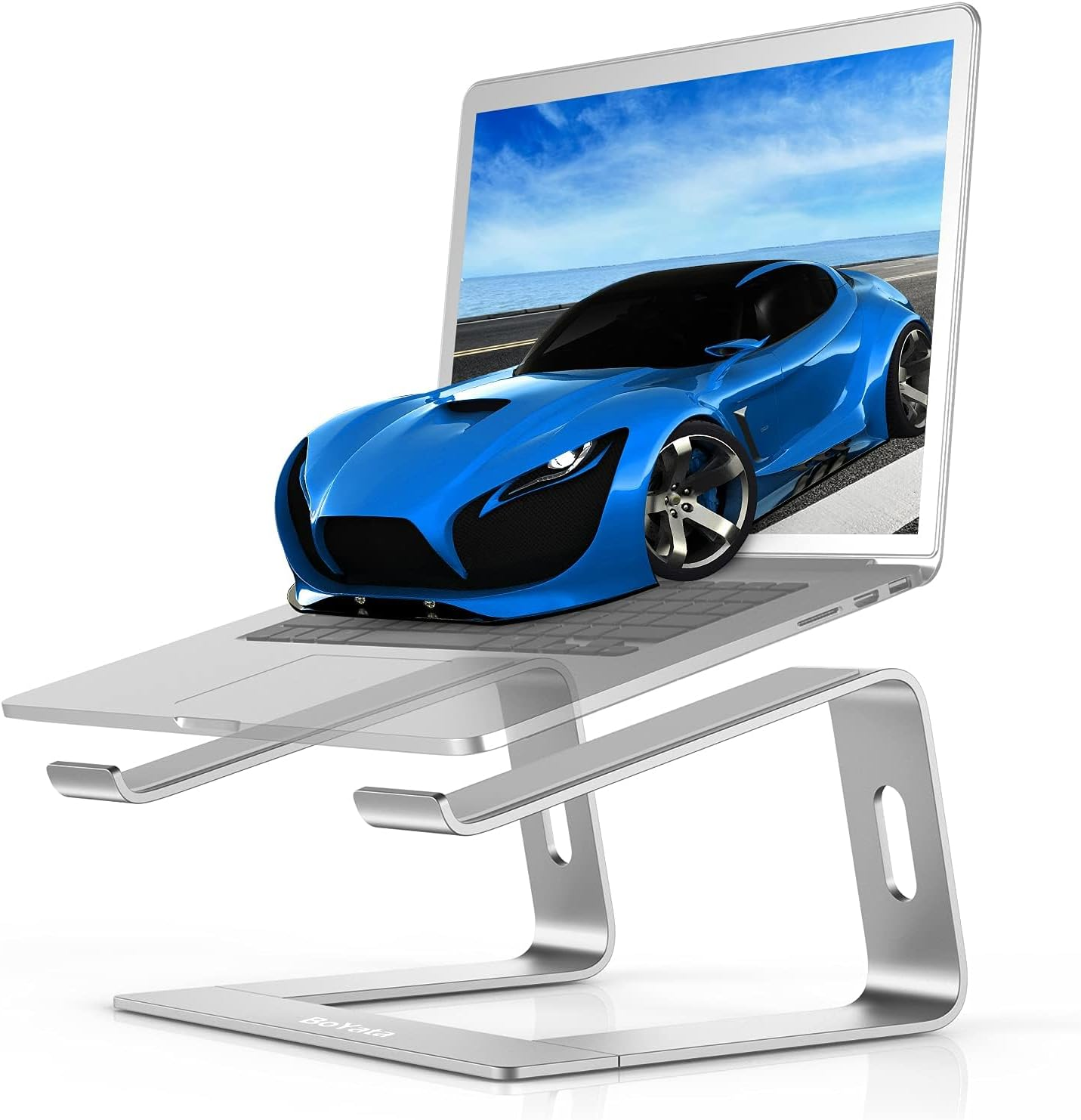
The laptop stand lifts the XMG off the desk, which:
- improves airflow and cooling,
- puts the screen at a more ergonomic height if I ever use it as a second monitor,
- frees up desk space underneath.
Laptop stand
Raises the laptop, improves airflow and keeps the desk less cluttered.
https://amzn.to/4tENXu0
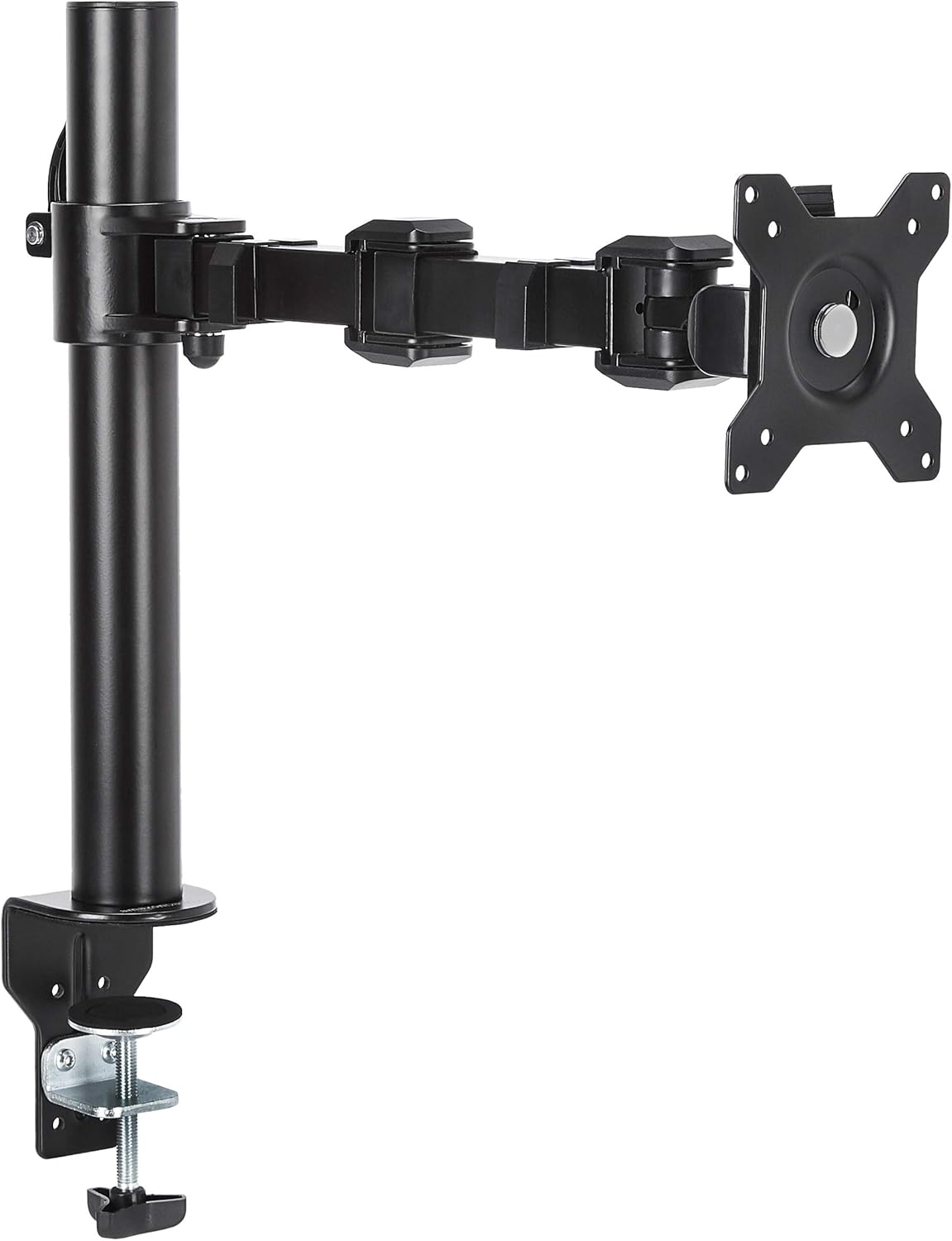
Monitor arm
The monitor arm gives me freedom to position the widescreen exactly where I want it:
- centered at eye height,
- pushed back to create more desk depth,
- or pulled closer when I need it.
It also makes the desk look much cleaner without a bulky monitor stand.
Monitor arm for widescreen displays
Lets you position your ultrawide exactly where it feels best and keeps the desk tidy.
https://amzn.to/46b6STb
Combined, the stand and arm make the whole setup feel more intentional and less like „laptop and random monitor on a table“.
7. How this setup supports AI-enhanced work
None of this is „AI hardware“ in the sense that it has “AI” written on the box. But together, it makes AI-enhanced work feel natural:
- The XMG laptop has enough headroom to run local models, containers and tools without constantly fighting for resources.
- The widescreen monitor lets me keep IDE, browser and AI assistant visible at the same time.
- The MX Master mouse and keyboard make long sessions of typing prompts, refactoring code and jumping between windows comfortable.
- The wired Poly headset means calls just work – no battery anxiety.
- The USB desk lamp, laptop stand and monitor arm keep the physical environment comfortable and clean, even during late-night sessions.
I’m not claiming this is the perfect setup for everyone, but it’s a configuration I’m happy to sit down at every day – and that’s ultimately what matters.
If you’re thinking about upgrading your own setup, feel free to use this as a starting point. And if you pick up anything through the Amazon links above, you’re directly supporting this blog at no extra cost to you.