Practical Use Cases for Combining SAP with the Microsoft Power Platform in 2026
If you look at how many companies are set up in 2026, you’ll notice a familiar pattern: SAP runs the core processes in the background, while almost everyone’s day-to-day work happens in Microsoft 365 – in Outlook, Teams, Excel, PowerPoint and maybe some Power BI dashboards.
On paper, these worlds are „integrated“. In reality, a lot of people still copy data from SAP screens into Excel, send screenshots in Teams and chase approvals via email threads.
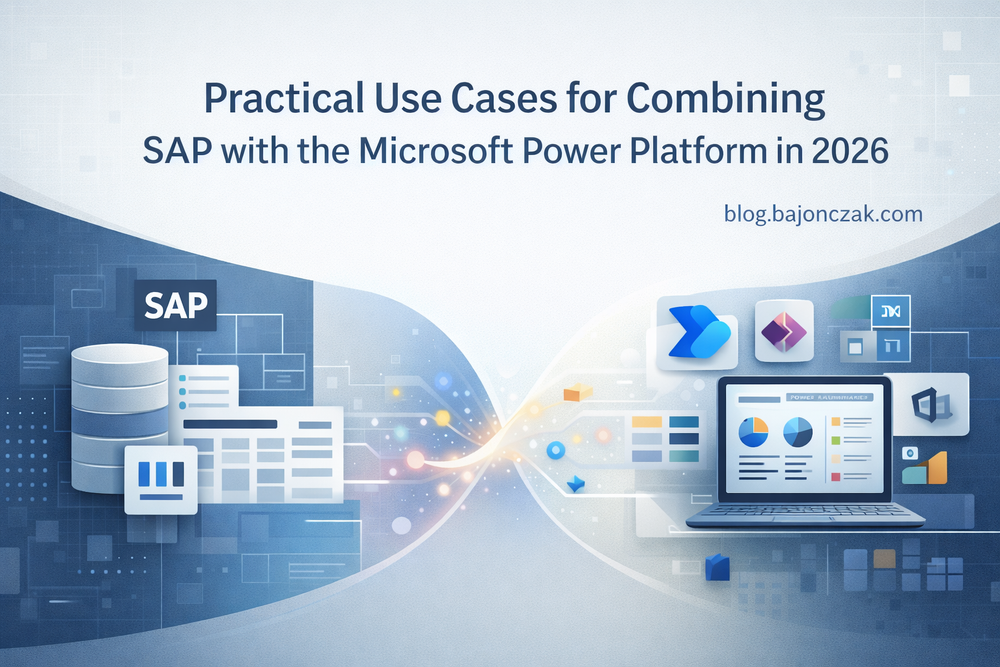
In this article, I want to focus on something very specific and practical: how to use the Microsoft Power Platform to make SAP data and processes actually usable for the people who live in Microsoft 365 all day. No multi-year migration, no „strategic transformation roadmap“ – just concrete use cases that you can start with.
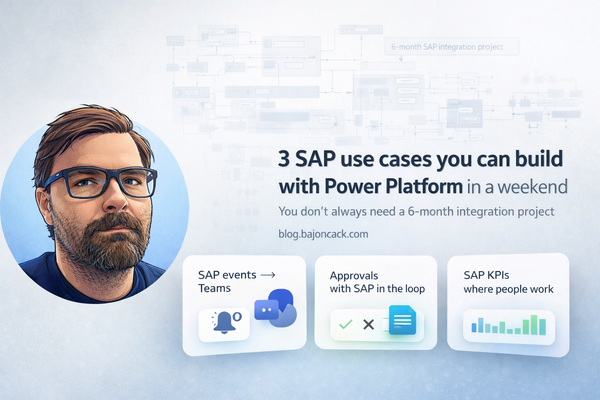
I’ll walk through three scenarios I’ve seen again and again:
Surfacing SAP data in Teams and Outlook using Power Automate
Building lightweight Power Apps on top of SAP for the people who never want to see an SAP GUI
Using Power BI to turn SAP data into living dashboards instead of monthly Excel snapshots
Each of these can stand on its own, but together they turn „SAP as a backend“ into something much closer to „SAP as part of the flow“.
Surfacing SAP data in Teams with Power Automate
Let’s start with the most immediately visible win: getting SAP events and updates into the place where people actually talk – which, for most companies, is Microsoft Teams.
A typical scenario looks like this: sales orders are created or changed in SAP, but the sales team lives in Teams. Right now they either log into SAP, ask someone in the back office or wait for an email. None of that feels modern.
Example use case: new high-value SAP sales orders → Teams channel
Imagine the following flow:
- Whenever a new sales order above a certain value (say, 50k) is created in SAP,
- a message is posted in a specific Teams channel used by the sales and account team,
- including key details (customer, amount, product group, responsible sales rep) and quick links.
You don’t have to go crazy with architecture for this. A very pragmatic setup could look like this:
- Expose SAP order data via an API
This can be an OData service or a custom REST endpoint from SAP (via SAP Gateway, SAP BTP, CAP etc.).
The important part: the API can be called from outside and returns the fields you care about: order number, customer, net amount, currency, date, sales rep. - Trigger an event when a new order is created
You’ve basically got two main options:
- SAP pushes an event to an intermediate layer (e.g. Azure Function, Webhook, Event Hub).
- Or you start simpler: a scheduled Power Automate flow polls the API every X minutes and only reacts to new orders (not elegant, but often good enough for a first iteration).
- Build a Power Automate flow that posts to Teams
In Power Automate, the logic might look like this (simplified):
Trigger:
Recurrence → every 5 or 10 minutes
 🚀 New high-value order in SAP

       Customer: @{items('Apply_to_each')?['customerName']}
       Amount: @{items('Apply_to_each')?['amount']} @{items('Apply_to_each')?['currency']}
Sales Rep: @{items('Apply_to_each')?['salesRep']}

       SAP Order: Open in SAP
Textually, you can imagine a screenshot here of the Power Automate „flow overview“: on the left the trigger and actions, on the right the Teams message preview.
The result: instead of someone asking „has the order already come in?“ in a random chat, the relevant people automatically get notified with all important fields, in the tool they already use.
Power Apps as lightweight frontends on top of SAP
The second pattern I like is using Power Apps as a thin UI layer for parts of SAP that are too heavy or unfriendly for occasional users.
A classic example: people in the warehouse or field service who need to look up or update SAP data occasionally, but don’t live in SAP all day. Giving them full-blown SAP GUI or complex web transactions is often overkill.
Example use case: simple material / product lookup app
Imagine a small mobile-friendly app where someone can:
- search for a material by number, barcode or description,
- see current stock, storage location and basic attributes,
- optionally flag something (e.g. „stock discrepancy“), which then triggers a small process.
A realistic implementation path could look like this:
- Expose material data from SAP as a data source
Again, OData is the usual suspect. You make sure your service exposes at least: material number, description, base unit, stock quantity, plant, storage location, and maybe an image URL
- Create a Canvas Power App
In Power Apps Studio:
- Add a data connection to your SAP OData service.
- Create a search screen with a text input („Search“) and a gallery bound to your SAP entity.
Use the Items property of the gallery to filter:
     Filter(
       SAP_Materials,
       TextSearchBox1.Text in MaterialNumber
         || TextSearchBox1.Text in Description
     )
- Detail screen for a selected material
When a user taps on a material in the list, navigate to a detail screen that shows the key fields and maybe a product image:
Navigate(DetailScreen, ScreenTransition.Fade, { selectedMaterial: ThisItem })
On the detail screen, labels are bound to selectedMaterial.MaterialNumber, selectedMaterial.Description, selectedMaterial.StockQuantity, etc.
- Optional: flagging an issue back into SAP
Add a button „Report stock issue“. When clicked, it triggers a Power Automate flow that:
- receives the material number and a user comment,
- writes an entry into SAP (e.g. via a custom API that creates a notification / record in a Z-table),
- sends a confirmation back (which the app displays with
Notify("Issue reported", NotificationType.Success)).
In a real article, this is where you could show:
- a screenshot of the Canvas App designer with the gallery and detail screen,
- and maybe a mobile screenshot of the app on a device.
From the user’s perspective, they never see SAP. But under the hood, they are reading and writing SAP data through a controlled, purpose-built interface.
Power BI dashboards on top of SAP data
The third use case is so common that it almost sounds boring, but done well it’s a huge value-add: using Power BI to turn SAP data into living dashboards instead of monthly Excel exports.
Example use case: order intake & backlog dashboard
Most companies have some kind of reporting around order intake and backlog. In many cases, someone runs an SAP report, exports to Excel, cleans it up and sends a PDF.
Instead, you can do something like this:
- Connect Power BI to SAP
There are multiple options:
The details depend on your landscape, but the idea stays the same: you get a reliable, refreshable feed of order data into Power BI.
- DirectQuery or import via SAP BW/4HANA or SAP HANA connector
- OData via SAP Gateway
2 . Build a model that matches how the business thinks
Rather than reflecting every single SAP table, create a semantic model that aligns with how people ask questions: by region, sales rep, product group, month, status.
- Create a dashboard that answers real questions
For example:
- „How much order intake did we have this month vs last month?“
- „Which customers are trending up or down?“
- „Where is backlog piling up?“
In Power BI Desktop, you might create visuals like:
- a line chart of order intake over time,
- a bar chart by region or product group,
- a table with drill-through to customer details.
- Publish and integrate with Teams / SharePoint
Once published to the Power BI Service, you can:
- pin key visuals to a dashboard,
- embed the report in a Teams channel tab („Reports“), or add it to a SharePoint page.
For users, the difference between „here’s the latest Excel attachment“ and „open the Orders dashboard in Teams“ is huge. And because the data refresh is automated, you don’t depend on someone remembering to run a report.
Where AI fits into all of this (without taking over the plot)
Because AI is such a dominant topic right now, it’s worth mentioning how it fits into the SAP + Power Platform story – without making everything „about AI“.
Once you have SAP data and processes exposed via APIs and wired into the Power Platform, you can incrementally add AI in meaningful places:
- Use AI Builder or Azure OpenAI in Power Automate to generate summaries of SAP error logs or long order comments and push them to Teams.
- Let an AI model highlight anomalous orders or customers in Power BI, instead of just showing static thresholds.
- Offer a „Explain this SAP error in normal language“ button in a Power App that calls an AI model with the technical message and returns a user-friendly explanation.
The important part: AI sits on top of a clean integration, not as a magic overlay on a broken landscape.
Closing thoughts
The integration between SAP and Microsoft technologies is not a new topic. What changed in the last few years is how approachable it has become for teams that don’t want to build yet another heavy middleware project. With the Power Platform, you can start small:
- one Power Automate flow that posts high-value orders into Teams,
- one Power App that shields users from a painful SAP transaction,
- one Power BI report that replaces a manual Excel export.
From there, you can iterate. If something proves valuable, you harden it, add proper error handling, monitoring and governance. If not, you throw it away and try the next idea.
The key is to stop treating SAP and Microsoft 365 as separate planets and start thinking in terms of flows: Where does information originate? Who needs to see it? In which tool are they already working? And how can we connect the dots with the least amount of friction?
That, more than any buzzword, is what „integration“ actually looks like in 2026.